
 ShotwellLinux
vs
Ashampoo Photo CommanderWindows
ShotwellLinux
vs
Ashampoo Photo CommanderWindows
Shotwell as a Linux alternative to Ashampoo Photo Commander
Updated
Our verdict
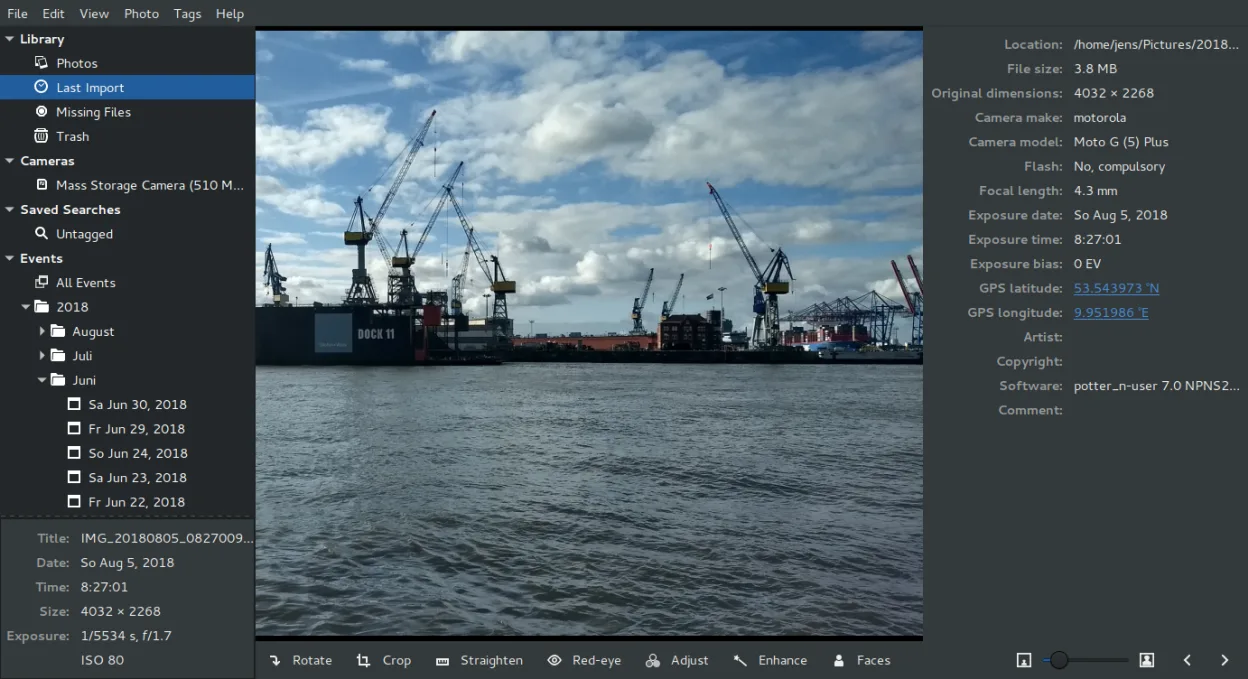
Shotwell can replace Ashampoo Photo Commander for users who need basic photo cataloging and light editing on a GNOME desktop. It supports folder‑based organization, rating, cropping, rotation, exposure and color adjustments, and batch renaming. It works well for casual photographers and those who prefer a free, open‑source tool. Professional users who rely on advanced RAW processing or complex batch workflows may find Shotwell lacking.
- License
- LGPL-2.1+
- Price
- Free
- Latest version
- 33.0 (September 13, 2026)
- Rating
- —
What works the same
- Both import photos from disk or camera and organize them by date or tags
- Both allow thumbnail browsing and rating of images
- Both provide basic adjustments such as crop, rotate, exposure, and color balance
- Both support common RAW and JPEG formats
- Both offer batch processing of edits and renaming
What is different
- Shotwell is GNOME‑centric and integrates with the GNOME file manager, while Ashampoo is cross‑platform Windows only
- Shotwell’s editing is non‑destructive and limited to basic tools; Ashampoo offers more advanced editing options
- Shotwell lacks a dedicated RAW processing pipeline with advanced controls; Ashampoo provides more robust RAW support
- Shotwell does not have a built‑in renaming dialog for complex patterns; Ashampoo does
- Shotwell does not export to as many file formats or provide extensive export presets that Ashampoo offers
Opening your Ashampoo Photo Commander files
Shotwell can open RAW and JPEG files directly, but it does not read Ashampoo Photo Commander’s proprietary project files. Exporting from Ashampoo to a common format (e.g., JPEG, PNG) and then importing into Shotwell is the practical approach. If you have edited RAW files in Ashampoo, re‑import the original RAW into Shotwell for editing.
Switching from Ashampoo Photo Commander to Shotwell, step by step
- Export all photos from Ashampoo to a common format (JPEG/PNG) or keep the original RAW files in a folder
- Create a new Shotwell library by launching Shotwell and selecting the folder containing the exported images
- Use Shotwell’s import function to add the images to the library, preserving dates and tags if possible
- Re‑apply any ratings or tags in Shotwell using its built‑in tools
- If you need advanced RAW edits, use Shotwell’s non‑destructive editor or a dedicated RAW tool
- Back up the original Ashampoo library before deleting or archiving it
Key features of Shotwell
- Import photos from camera or disk
- Organize by date, tags, ratings
- Non‑destructive crop, red‑eye, color, straighten
- Support for RAW, JPEG, PNG, TIFF
- Upload to Flickr, Google Photos, etc.
- Fast, lightweight UI
- Integrated with GNOME file manager
How to install Shotwell on Linux
flatpak install flathub org.gnome.Shotwellsudo apt install shotwellsudo apt install shotwellsudo dnf install shotwellsudo pacman -S shotwellsudo zypper install shotwellFrequently asked questions
Can Shotwell import Ashampoo Photo Commander project files?
No, Shotwell cannot read Ashampoo’s proprietary project files. You must export the images first.
Does Shotwell support batch renaming like Ashampoo?
Shotwell does not have a built‑in batch renaming dialog, but you can rename files in the file manager before importing.
Will Shotwell preserve my image ratings from Ashampoo?
Ratings can be re‑applied manually in Shotwell; they are not automatically transferred from Ashampoo.
6 other alternatives to Ashampoo Photo Commander
 digiKamdigiKam is a comprehensive KDE photo manager for organizing, tagging, and editing digital photos with strong…Open sourceFreeFlatpakdigiKam vs Ashampoo Photo Commander
 gThumb Image ViewergThumb is a GNOME‑integrated image viewer, editor and organizer for Linux.Open sourceFreeFlatpakgThumb Image Viewer vs Ashampoo Photo Commander
 darktabledarktable is a free, open‑source photo editor that manages raw files and offers a full non‑destructive…Open sourceFreeFlatpakdarktable vs Ashampoo Photo Commander
 RawTherapeeRawTherapee is an open‑source, cross‑platform raw photo development program.Open sourceFreeFlatpakRawTherapee vs Ashampoo Photo Commander
 XnView MPXnView MP is a fast, cross‑platform image viewer and organizer for Linux.FlatpakXnView MP vs Ashampoo Photo Commander
 nomacs - Image LoungeNomacs is a free, open‑source image viewer that supports thumbnails, metadata, histograms and browsing inside…Open sourceFreeFlatpaknomacs - Image Lounge vs Ashampoo Photo Commander